
TL;DR:
- YouTube now generates thumbnails for long-form videos inside Ask Studio, straight from a chat prompt.
- It’s desktop-browser only, rolling out in stages, and it reads your video’s transcript and themes to match your channel style.
- Using AI to make a thumbnail does not trigger YouTube’s synthetic-content disclosure rule.
- YouTube’s AI thumbnail generator can create multiple thumbnail variants to test..
- Pair it with TubeBuddy A/B testing (a Legend feature) to find the version that actually earns the click.
A great thumbnail is the difference between a click and a scroll. You can pour a weekend into the perfect video and still lose the impression war in the split second someone spends deciding whether your thumbnail is worth their time.
YouTube’s AI thumbnail generator, which started rolling out this summer (2026) is designed to make creating compelling thumbnails easier. It lives in Ask Studio, the AI assistant in YouTube Studio. You describe what you want, it builds a thumbnail for your video, and you refine it by chatting.
The generator makes creating a thumbnail fast. In our tests, it does an admirable job and thumbnail designers everywhere are probably feeling a little worried. But it’s AI; it can’t think. It can make a thumbnail to your specifications but that’s no guarantee it’ll get clicks.
This guide walks through the full Ask Studio flow, gives you prompts that produce click-worthy results, answers the disclosure question every creator is asking, and shows how to test the winner with TubeBuddy’s A/B testing so you keep the version viewers actually respond to.
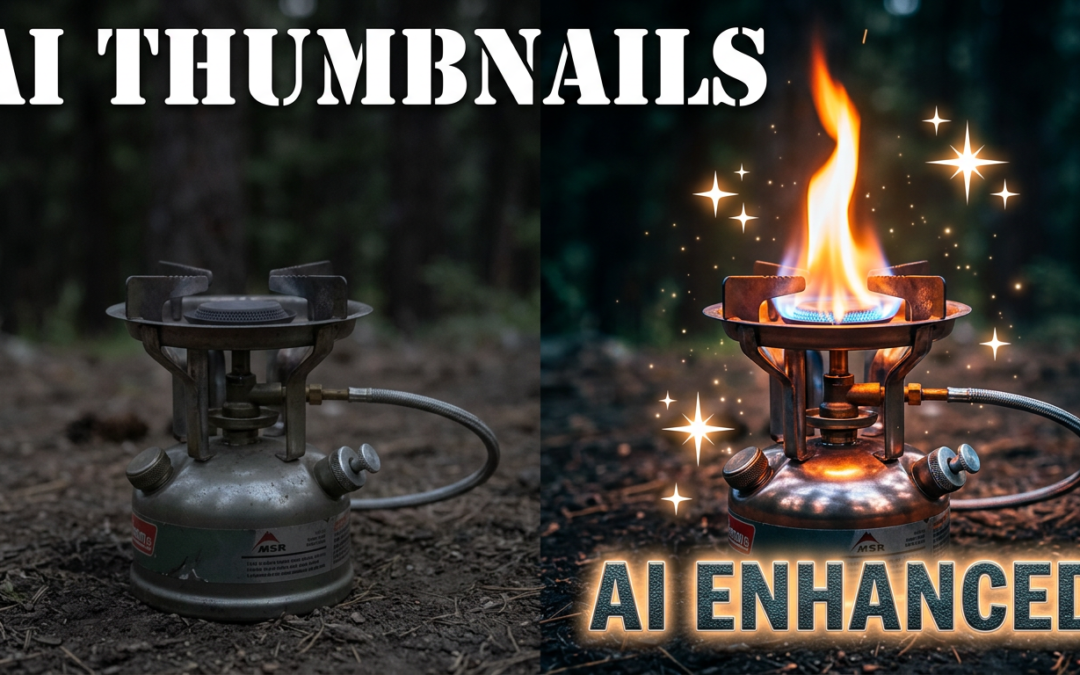
Note: The featured image accompanying this post was created with YouTube’s AI thumbnail generator. It has not been edited.

Get an unfair advantage on YouTube
Give your YouTube channel the upper hand and easily optimize for more views, more subs, and more of every metric that matters.
Get Started
An intro to the native YouTube AI thumbnail generator
The YouTube AI thumbnail creator lives inside Ask Studio, the conversational assistant built into YouTube Studio. Ask it for a thumbnail tied to one of your long-form videos, and it produces an image you can then adjust and refine with text prompts. Because YouTube already has your title, description, transcript, audience patterns, and visual history, the thumbnails come back tailored to that video’s themes and to your channel’s usual style.
A few things to know before you open it:
- It’s for long-form videos. Shorts got an update at the same time YouTube announced its AI thumbnail generator. Creators in the YouTube Partner Program can now upload custom thumbnails for Shorts, and desktop users can pick from three suggested frames. But at this time, the native YouTube AI thumbnail generator is for long-form videos.
- Desktop web browsers only. The feature is available to most creators globally through a desktop browser. There’s no mobile version today.
- It’s a staged rollout. YouTube has not given a universal availability date, so it may show up for you before or after another creator. Official Artist Channels, channels made for kids, and creators under 18 are excluded from the rollout.
- No separate YouTube subscription. It’s part of Studio for eligible creators, not a paid YouTube add-on. Access comes down to the staged rollout and the eligibility rules above, not a plan you pay for.
How to generate a thumbnail with Ask Studio, step by step
Note: You won’t be offered the option to create an AI thumbnail during upload. If you want to generate a thumbnail for a new, unpublished video you’ll have to go through the full Create (upload) process first. The easiest way we’ve found to generate thumbnail options for a new video is to:
- Upload your video in the usual way in YouTube Studio > Create
- Once processed, choose a frame from your video as the temporary thumbnail
- Save the video as private
- Edit the video details in YouTube studio
If the YouTube AI thumbnail generator is available for your channel, you’ll see a Get suggestions button below your current video thumbnail. You can also ask for a thumbnail in Ask Studio


Step 1: Open the thumbnail generator
On a desktop browser, open your video’s details page in YouTube Studio and scroll to the Thumbnail section. Click Get suggestions. That opens Ask Studio in a panel titled Thumbnail Design Ideas with a starter prompt (Generate a thumbnail for this video) already sent, so it gets to work right away.
You can also open Ask Studio directly and type a prompt yourself, then attach the video with the @ picker or the + button in the chat.
Step 2: Prompt it for a thumbnail
Type a request like Create a thumbnail. To point it at a specific video, type click the + symbol in the chat and select the video. You can try to get specific with your prompt at this point but we’ve found we get the best results by just asking for a thumbnail and letting Ask Studio create a first draft to react to. So a complete prompt at this stage looks like this:
Create a thumbnail for this video
Ask Studio reads that video’s transcript and themes, then returns thumbnail options built around them.
Three AI generated screenshots from YouTube’s AI thumbnail generator to replace an underperforming thumbnail.
Step 3: Refine by chatting
You probably won’t ship the first AI generated thumbnail Ask Studio comes back with. So it’s time for follow-up prompts. You can give feedback the way you would give it to a thumbnail designer. For example:
- Make the text larger and move it to the left.
- Change the background to a high-contrast blue.
- Swap the focal element for a close-up of my face reacting.
- Remove the extra icons and keep it to one subject.
Keep the changes to one idea per message. It’s easier to see what each tweak did.
Step 4: Select an option and save
To apply the thumbnail you have to download it and upload it to your video and save.
How good are YouTube AI generated thumbnails?
In our testing, we found YouTube AI generated thumbnails to be quite impressive. They used brand elements like font choice well. The result of our experiments were thumbnails that felt at least close to page-ready. Refining the output is easy with more text prompting. Thumbnails can be downloaded and brought into image editing software for fine-tuning.
AI generated YouTube thumbnails won’t replace a good thumbnail designer but for quick, inexpensive thumbnail iteration, they’re great.
Response quality varies widely but you typically get three options to choose from and iterate on.
As with all things AI, a good prompt makes all the difference. So while our examples so far have used the most basic prompts (“create a thumbnail for this video”), let’s look at how to get better outputs by giving better inputs.
Writing prompts that produce click-worthy thumbnails
The generator is only as good as your direction. Vague prompts get you generic thumbnails, and generic thumbnails get scrolled past. Good thumbnails follow a few rules that hold whether a human or an AI makes them:
- One focal subject. A single face, object, or moment. Competing subjects split attention and kill clarity.
- Clear emotion. Surprise, curiosity, and tension out-click a neutral expression almost every time.
- High contrast. Bright subject against a simple background so it pops at thumbnail size.
- Three words of text or fewer. Save the sentences for your title and description. Make words count.
Because Ask Studio reads your transcript, you can point it at real moments from the video instead of describing something generic. You can reference specific moments or elements in your video in your prompt.
One limitation to plan around: you can’t upload or link a reference image for it to copy. If you have a look in mind, you have to describe it in words. Spell out the composition (where the subject sits), the colors and lighting (bright and natural, or dark and high-contrast), the text and where it goes, and the overall style (clean product shot or rugged in-the-field). The more specific the description, the closer the result.
Weak prompt: Make a thumbnail for my cooking video.
Stronger prompt: Create a thumbnail for this video. One focal subject: a close-up of the finished dish steaming. Bright warm background, high contrast, my shocked reaction in the corner, two words of bold text max.
Stronger prompt (tutorial): Create a thumbnail for this video. Show the before and after side by side, big directional arrow between them, clean high-contrast background, no more than three words of text.
Since YouTube AI thumbnail generation is free (for now?!) you might find it better to generate two or three distinct directions rather than polishing one.
For a deeper set of prompt ideas, our guide on using AI for YouTube videos covers prompts across the whole workflow, and these thumbnail tips from big creators cover the design fundamentals worth prompting toward.Prompt for options, not perfection.
Do AI-generated thumbnails require disclosure on YouTube?
The short answer is no, and creating your thumbnail with YouTube’s AI thumbnail generator does not flag your content as altered or synthetic.
That rule exists for realistic content that could mislead viewers about something that actually happened, like a fabricated event or a real person saying something they didn’t. YouTube treats production help such as thumbnails, titles, outlines, and aesthetic touch-ups as the kind of assistance that generally does not require disclosure.
In short, an AI thumbnail on a genuine video doesn’t count against you.
Two caveats worth keeping in mind. Thumbnails from Ask Studio do carry an identifier that they’re AI-generated. YouTube embeds an invisible SynthID watermark and C2PA metadata that stays with the file even after editing or compression, so the image is recognizable as AI-made even though nothing is visible to viewers and no action is required from you. And your thumbnail still has to follow Community Guidelines. AI does not exempt you from the rules against misleading or clickbait imagery.
For the full picture on when a label is required, read our breakdown of YouTube’s 2026 AI labeling update.
So if your video doesn’t use AI in the ways YouTube requires you to disclose, adding a thumbnail using YouTube’s AI thumbnail generator doesn’t require a YouTube AI disclosure.
You should still test your thumbnails
Generated thumbnails typically look good but only way to know how YouTube AI generated thumbnails perform is by testing.
You have two options:
YouTube’s native option: Test & compare thumbnails. Built into Studio and free, it rotates two or three thumbnails on the live video and picks a winner based on watch-time share.
TubeBuddy A/B testing. This is a Legend-plan feature, and it tests more of what actually drives a click. It measures click-through rate directly, not just downstream watch time, and it can test titles and descriptions alongside thumbnails, with a 95% confidence threshold before it declares a winner. TubeBuddy’s Thumbnail Analyzer also gives you a pre-publish read using eye-tracking-style heatmaps, so you can see where attention lands before you ever go live.
So where YouTube’s native Test & compare thumbnails is free, it only lets you optimize for watch time. TubeBuddy A/B Testing tools add granularity to testing, including the option to test against click through rate (CTR) and much more.
How to A/B test your AI thumbnail with TubeBuddy
Testing an AI thumbnail is the same workflow as testing any thumbnail. The generator just makes the “create variations” step faster.
- Generate two distinct versions in Ask Studio. Change one big variable between two thumbnails. Something like a different facial expression, a different focal subject, or text versus no text.
- Set up an A/B test in TubeBuddy. Run the two thumbnails head-to-head on the live video so real viewers, not your own taste, decide the winner.
- Let it reach significance. TubeBuddy waits for 95% statistical confidence before calling a result, which keeps you from crowning a winner off a lucky first day.
- Keep the winner, learn the pattern. Note why it won. Over time those patterns become your channel’s thumbnail playbook.
Get an unfair advantage on YouTube
Give your YouTube channel the upper hand and easily optimize for more views, more subs, and more of every metric that matters.
Get Started
FAQ: How to use YouTube’s AI thumbnail generator in Ask Studio
There’s no separate YouTube charge for it. It’s part of Ask Studio in YouTube Studio and available to most eligible creators through a desktop browser. Because it’s rolling out in stages, you may not see it yet even if your channel qualifies. Official Artist Channels, channels set as made for kids, and creators under 18 are excluded. Access is gated by the rollout and those eligibility rules, not by a paid plan.
On desktop, open your video’s details page and scroll to the Thumbnail section, then click Get suggestions. That opens Ask Studio’s Thumbnail Design Ideas chat with a starter prompt already sent. You can also open Ask Studio directly, prompt it to create a thumbnail, and use the @ picker or + button to choose the video.
No. An AI-made thumbnail on a real video does not trigger YouTube’s altered or synthetic content disclosure, which is meant for realistic content that could mislead viewers. The thumbnail still has to follow Community Guidelines. See our AI labeling guide for when a label actually applies.
They follow YouTube’s standard thumbnail spec: 1280×720 pixels at a 16:9 aspect ratio. One thing you can’t do is feed it a reference image to copy, so if you have a specific look in mind, describe it in the prompt instead.
Yes. A generated thumbnail is a normal image file, so it works with any testing tool. YouTube’s free Test & Compare rotates versions by watch-time share, and TubeBuddy’s A/B testing (a Legend feature) measures click-through rate directly and can test titles and descriptions too.
They solve slightly different problems. YouTube’s generator wins on convenience because it’s inside Studio and already knows your video. Standalone tools can offer more control over style and assets. Whichever you use to create the image, the deciding factor for growth is the same: test it against a real alternative and keep the version that earns more clicks.